🔔 Service: Gotify (Notification Hub)
Location: /mnt/pool01/homelab/services/ops-stack/gotify
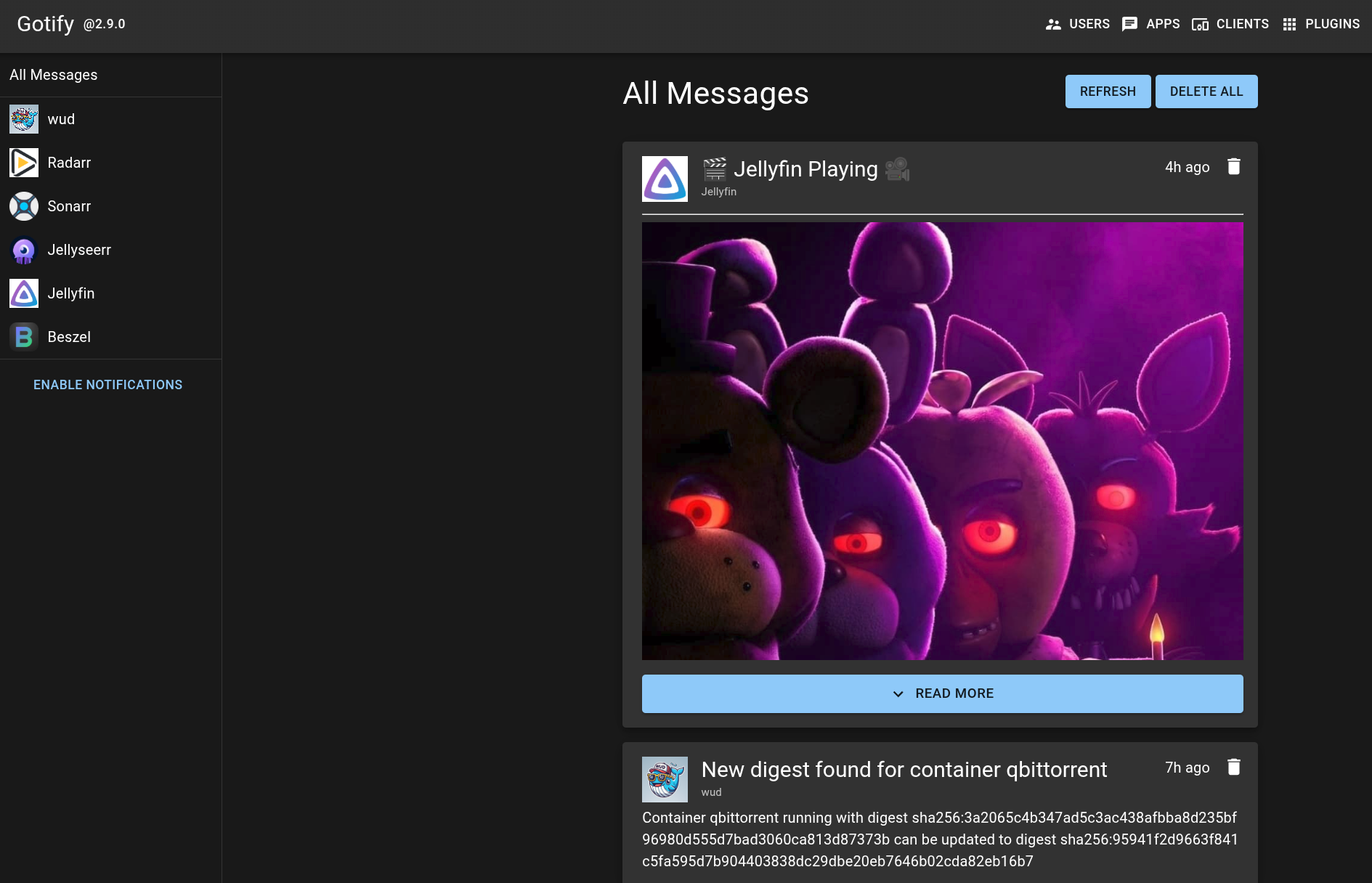
Gotify receives alerts from all automation apps and pushes them instantly to my mobile device via WebSocket. It runs as a lightweight, standalone service within the Ops Stack.
Docker Compose
networks:
  dockerapps-net:
    external: true

services:
  gotify:
    image: gotify/server
    container_name: gotify
    networks:
      dockerapps-net:
        ipv4_address: 172.20.0.16
        ipv6_address: fd00:dead:beef:2::16
    ports:
      - 8081:80
    environment:
      - PUID=${PUID}
      - PGID=${PGID}
      - TZ=${TZ}
      - GOTIFY_SERVER_PORT=80
    volumes:
      - ./data:/app/data
    restart: unless-stopped
Token Management
Gotify uses two distinct types of tokens. It is critical to use the correct token prefix for the intended task, or the integration will silently fail.
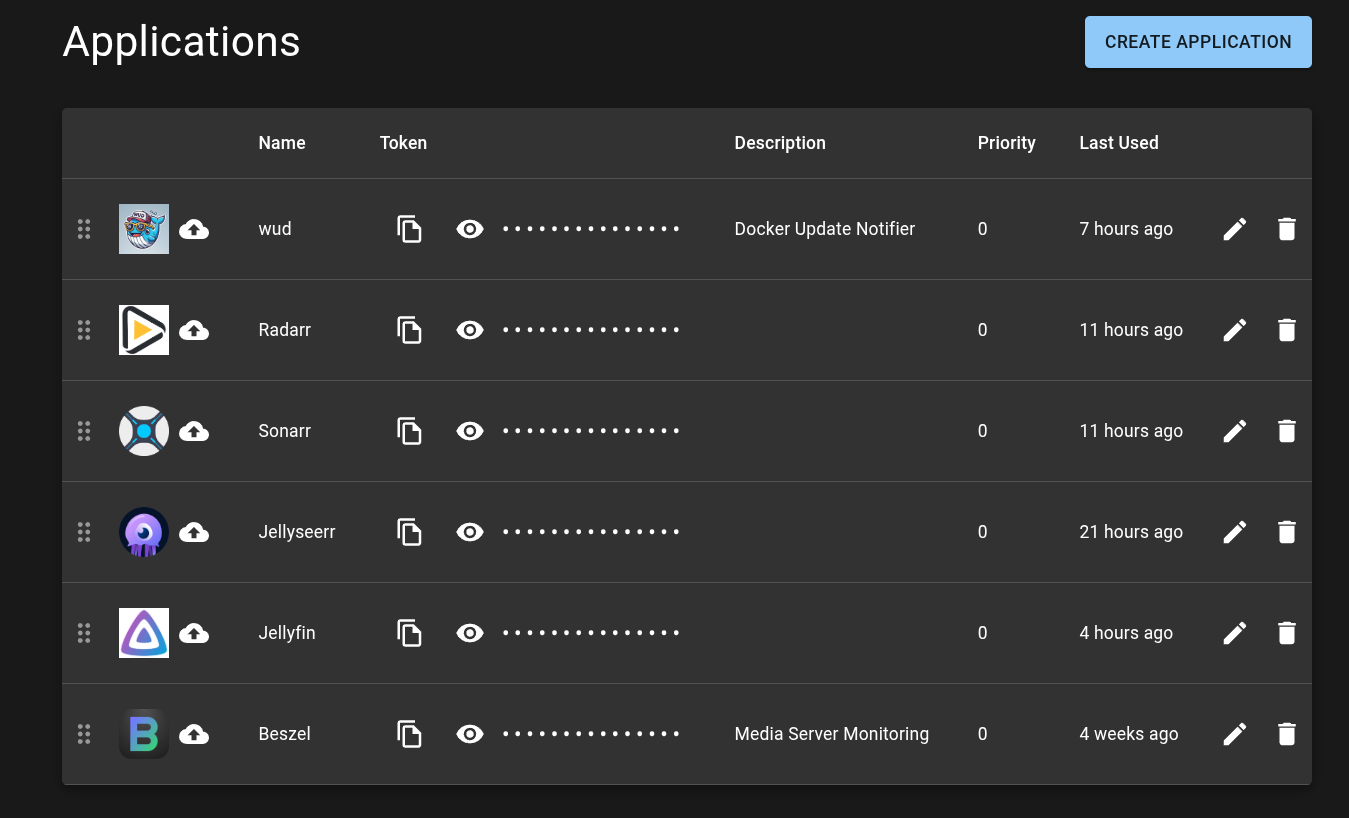
Application Tokens (A...)
Used by services to SEND messages to the Gotify server.
| Service | Integration Method | Trigger Events |
|---|---|---|
| Jellyfin | Webhook Plugin | Playback Started, Playback Stopped, New Media |
| Radarr | Native (Connect) | On Grab, On Import, On Upgrade |
| Sonarr | Native (Connect) | On Grab, On Import, On Upgrade |
| Seerr | Native (Notifications) | Request Pending, Request Approved |
| WUD | Native (Triggers) | New Image Available |
| Beszel | Native (Shoutrrr) | High CPU/RAM, High Disk Usage, Agent Offline |
Client Tokens (C...)
Used by devices to RECEIVE messages from the Gotify server.
| Client | Usage |
|---|---|
| Android App | Receives real-time push notifications on mobile devices |
| Homepage | Displays an unread message count on the dashboard widget |
Token Troubleshooting
If notifications suddenly stop working for a specific app, the first step is to check the Application Token in the sending service (e.g., Radarr) and ensure it perfectly matches the active token listed in the Gotify Web UI.
Jellyfin Webhook Integration Guide
Jellyfin does not have native Gotify support out-of-the-box. We use the Webhook plugin to bridge the gap and send formatted JSON payloads.
Step 1: Install the Plugin
- Go to Jellyfin Dashboard > Plugins > Catalog
- Install the Webhook plugin and restart the Jellyfin container
Step 2: Configure the Destination
- Navigate to Dashboard > Plugins > Webhook.
- Click Add Destination and select Gotify.
- Webhook URL:
http://172.20.0.16:80/message?token=<YOUR_APP_TOKEN>
Routing Bypass
Notice we use the internal static IP (172.20.0.16) and port 80 instead of the public https://gotify.mydomain.xyz. This keeps the traffic entirely inside the dockerapps-net Docker bridge, bypassing the external proxy and Caddy routing. It is faster and more reliable!
Step 3: Configure Templates (The Logic)
Raw webhooks are ugly JSON blobs. We use the official Jellyfin Webhook Templates to format them into readable text.
- Create a new Playback Start event:
- Item Type:
Movies,Episodes - Template: Copy and paste the raw text from
Templates/Gotify/PlaybackStart.handlebars.
- Item Type:
- Create a new Playback Stop event:
- Item Type:
Movies,Episodes - Template: Copy and paste the raw text from
Templates/Gotify/PlaybackStop.handlebars.
- Item Type:
Security & Access
Gotify is exposed to the public internet so our mobile phones can receive pushes while away from home. It requires strict security wrapping.
- Ingress: Accessed via the Caddy Reverse Proxy (
https://gotify.mydomain.xyz). - Protection: Secured by the CrowdSec Bouncer and GeoIP filtering (Singapore Only).
- WebSocket Magic: Caddy is configured to automatically upgrade the connection to WebSocket (
wss://). This allows the Android app to hold an open, low-battery connection for real-time pushes without constantly polling the server.
Maintenance & Backups
- Database: Gotify uses a flat SQLite database (
gotify.db) stored in./gotify/data. - Images: Uploaded application icons are stored in
./gotify/data/images. - Backups: Because all data is contained in the
./datadirectory, it is automatically captured, deduplicated, and encrypted by the daily Kopia snapshot to Cloudflare R2.