🎬 Service: Jellyfin + Seerr
This stack runs the primary media server (Jellyfin) and the request management frontend (Seerr). They are grouped together because they share the same network context and startup logic.
Docker Compose
# ----------------------------------------
# Network Definition - Have already set this up beforehand
# ----------------------------------------
networks:
  dockerapps-net:
    external: true
services:
  ##################################################
  # 1. JELLYFIN (Media Server)
  ##################################################
  jellyfin:
    image: linuxserver/jellyfin:latest
    container_name: jellyfin
    hostname: jellyfin
    group_add:
      - "988"
    networks:
      dockerapps-net:
        ipv4_address: 172.20.0.10
        ipv6_address: fd00:dead:beef:2::10
    ports:
      - 8096:8096
    environment:
      - PUID=${PUID}
      - PGID=${PGID}
      - TZ=${TZ}
    volumes:
      - ./jellyfin-config:/config
      - ./jellyfin-cache:/cache
      - /mnt/pool01/media:/media
    tmpfs:
      - /config/data/transcodes
    devices:
      - /dev/dri/renderD128:/dev/dri/renderD128
    restart: unless-stopped

  ##################################################
  # 2. SEERR (Request Manager)
  ##################################################
  seerr:
    image: ghcr.io/seerr-team/seerr:latest
    init: true
    container_name: seerr
    hostname: seerr
    networks:
      dockerapps-net:
        ipv4_address: 172.20.0.12
        ipv6_address: fd00:dead:beef:2::12
    ports:
      - 5055:5055
    environment:
      - PUID=${PUID}
      - PGID=${PGID}
      - TZ=${TZ}
    volumes:
      - ./seerr-config:/app/config
    healthcheck:
      test: wget --no-verbose --tries=1 --spider http://localhost:5055/api/v1/status || exit 1
      start_period: 20s
      timeout: 3s
      interval: 15s
      retries: 3
    restart: unless-stopped
    depends_on:
      jellyfin:
        condition: service_started
Notes
This configuration relies on the customer dockerapps-net network and a specific group_add permission for the AMD GPU.
Startup sequence to prevent database locks or connection timeouts: Jellyfin starts first, then Seerr starts, waiting for service_started signal from Jellyfin
Transcoding to RAM (tmpfs)
When Jellyfin transcodes video, it writes thousands of temporary files. By mounting /config/data/transcodes as a tmpfs volume, Docker intercepts these writes and stores them directly in the system RAM instead of the SSD. This drastically increases seeking speed and eliminates SSD write-wear.
Hardware Acceleration (AMD GPU)
This system has two GPUs. We must explicitly force Jellyfin, in compose file, to use our Dedicated RX 5600 XT instead of the integrated CPU graphics.
  devices:
    - /dev/dri/renderD128:/dev/dri/renderD128
- Integrated GPU:
/dev/dri/renderD129(Ignored) - Dedicated GPU:
/dev/dri/renderD128(Passed to container)
Jellyfin Settings
Below are some notable settings I did when first spun up the service:
Transcoding
These settings must be configured inside the Jellyfin Web UI (Dashboard > Playback > Transcoding).
- Hardware Acceleration:
VAAPI - VA-API Device:
/dev/dri/renderD128 - Enable Hardware Decoding:
- [x] H.264 / AVC
- [x] HEVC / H.265
- [x] MPEG2
- [x] VC1
- [x] VP9
- [x] AV1 (If supported by card)
Networking & Security
These settings must be configured inside the Jellyfin Web UI (Dashboard > Networking) to ensure mobile apps connect correctly and the reverse proxy is trusted.
LAN Networks
- Value:
192.168.0.0/24, 172.20.0.0/24 - Why: Tells Jellyfin which IPs are "Local."
192.168.0.0/24: Our home Wi-Fi network (allows Direct Play on phones).172.20.0.0/24: The Docker network (allows internal containers to talk).
- Effect: Prevents local devices from being treated as "Remote" (which triggers bandwidth limits and transcoding).
Known Proxies
- Value:
172.20.0.23(Caddy's Static IP) - Why: Tells Jellyfin to trust traffic from Caddy.
- Effect: Jellyfin reads the
X-Real-IPheader from Caddy to see the actual user's IP address. Without this, all logs show172.20.0.23, and IP-based security fails.
Published Server URIs & Allow Remote
- Value:
all=https://jellyfin.mydomain.xyz - Why: Explicitly tells clients (especially Android Apps) what the official public URL is.
-
Effect: Fixes "Connection Cannot be Established" errors on SG's mobile networks (4G/5G). The
all=prefix forces this URL for all clients, preventing them from trying to connect to unreachable internal IPs. -
Allow Remote Connections: [x] Checked.
Storage & Folder Structure
Jellyfin "sees" the media files at /media.
- Movies:
/media/movies - TV Shows:
/media/shows - Anime Movies:
/media/anime-movies - Anime Shows:
/media/anime-shows
Hardlink from Downloads Folder
Because of the /mnt/pool01/media:/media volume mapping, these files are hardlinked from the downloads folder, consuming no extra space.
This is an important distinction to document! While the documentation suggests a broad template, your "minimalist" approach of only modifying the Console output template is a cleaner way to handle it, provided Caddy or your Docker setup is funneling those console logs where CrowdSec can see them.
Here is a drafted section you can drop directly into your jellyfin.md file.
CrowdSec Integration
To enable active brute-force protection for Jellyfin using the LePresidente/jellyfin collection https://app.crowdsec.net/hub/author/LePresidente/collections/jellyfin, the default logging format must be modified.
CrowdSec's parsers are highly sensitive to timestamp formats and require a specific template to successfully identify failed login attempts.
Jellyfin Log Timestamp Change
Create the Override File
Navigate to our Jellyfin config directory and copy the default logging template to a live version.
cp ./jellyfin-config/logging.default.json ./jellyfin-config/logging.json
Modify the Output Template
Open logging.json and locate the WriteTo section. Update the Console argument to use the specific timestamp format required by the parser:
...
        "WriteTo": [
            {
                "Name": "Console",
                "Args": {
                    "outputTemplate": "[{Timestamp:yyyy-MM-dd HH:mm:ss.fff zzz}] [{Level:u3}] [{ThreadId}] {SourceContext}: {Message:lj}{NewLine}{Exception}"
                }
            },
...
Verification & Troubleshooting
After restarting Jellyfin (docker compose restart jellyfin), we can verify that CrowdSec is now "understanding" the logs:
Check Metrics
Run docker exec -it crowdsec cscli metrics and look for an increase in "Lines Parsed" under the Jellyfin source.
Parsing of logs
Most lines in our Jellyfin log are just "Information" (e.g., a movie started, a library scan finished). The LePresidente/jellyfin parser is specifically programmed to ignore that "noise" and only "parse" lines that match known attack patterns, such as failed logins (denied)
Seerr Set-Up
Role: Netflix-style user interface for requesting Movies and TV Shows.
URL: https://requests.mydomain.xyz (Public) / http://172.20.0.12:5055 (Internal)
Compose Config
- Dependencies:
depends_on: jellyfin(Ensures media server is up before requests UI starts).
- Networking:
- Static IP:
172.20.0.12 - Port:
5055
- Static IP:
- Environment:
LOG_LEVEL=debug(Add this if needed for troubleshooting connection issues).
- Volumes:
./seerr-config:/app/config(Stores user database and request history).
Post-Install Configuration
Because all our media and utility containers live on the same dockerapps-net bridge network, Seerr can communicate with them using their container names instead of static IPs. This makes the setup highly resilient.
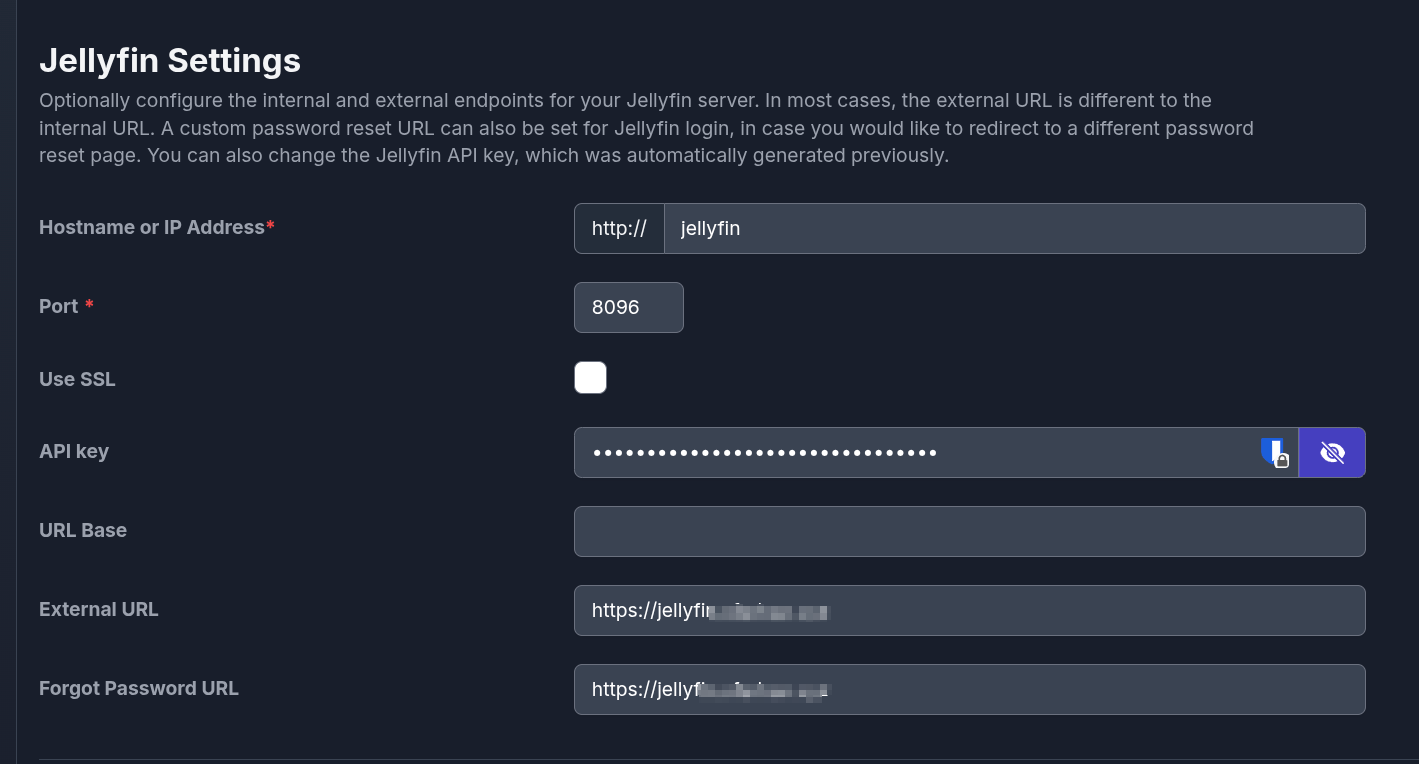
Step 1: Jellyfin Connection
On first launch, Seerr requires a connection to our Jellyfin server to establish the Admin account.
- Internal Address: Use
http://jellyfinand port8096. - External URLs: Enter our public Jellyfin domain (
https://jellyfin...). This ensures the "Play on Jellyfin" buttons work correctly when users are browsing Seerr externally.
Step 2: General Settings
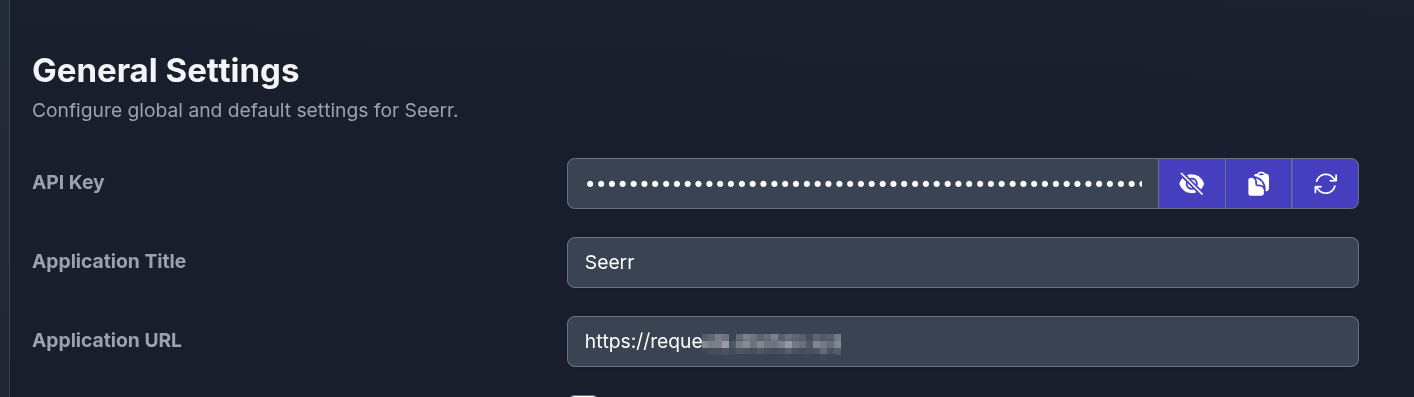
Navigate to Settings > General.
- Set our Application URL to our public Caddy domain (
https://requests...). - Jellyfin's API token input here.
Step 3: Connect Services (Radarr & Sonarr)
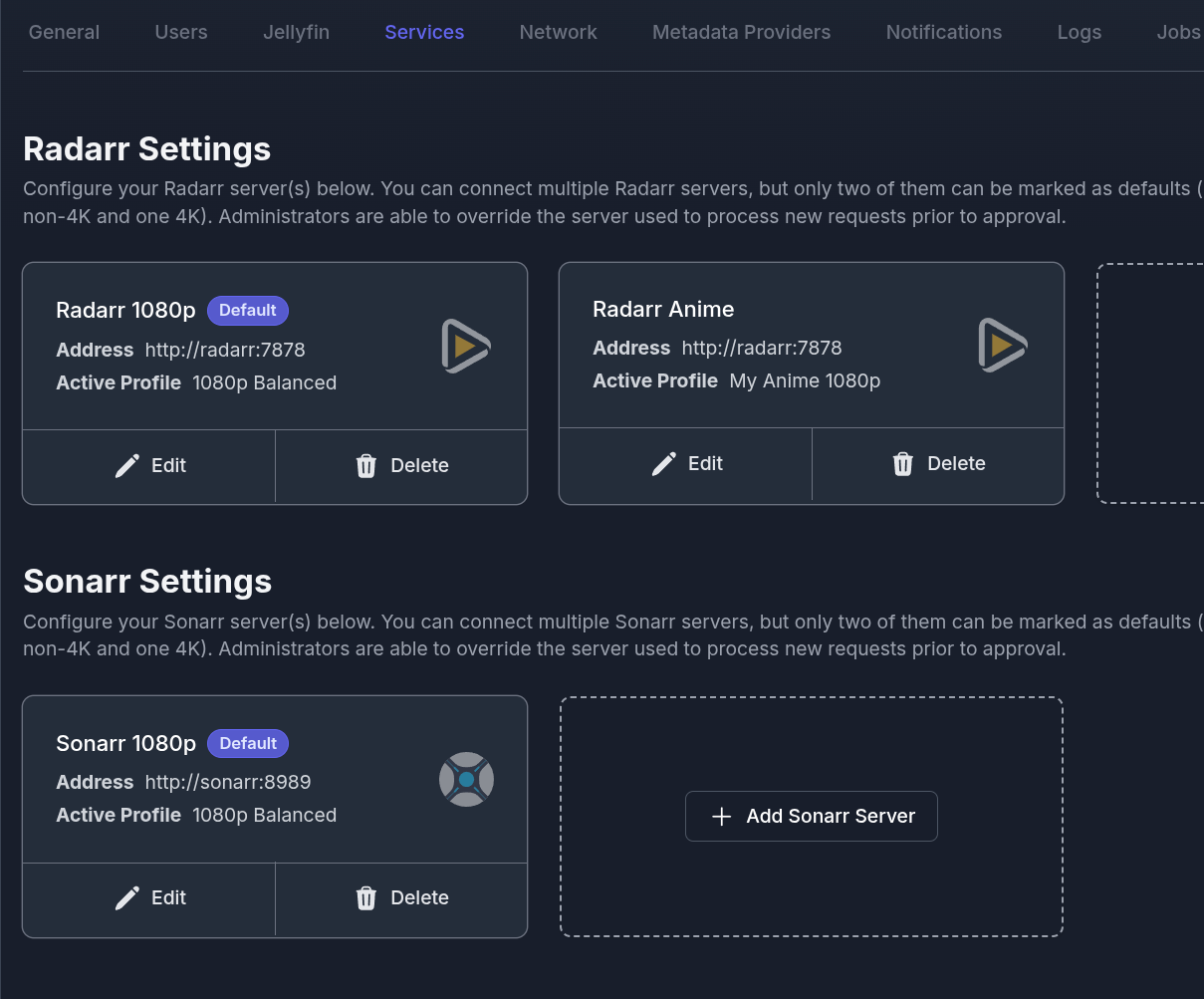
Navigate to Settings > Services to link our Arr stack.
-
Because they share a Docker network, use the internal container names as the address:
-
Radarr:
http://radarr:7878 -
Sonarr:
http://sonarr:8989 -
Select preferred Quality Profiles and the Root Folders for each service.
Step 4: Notifications (Gotify)
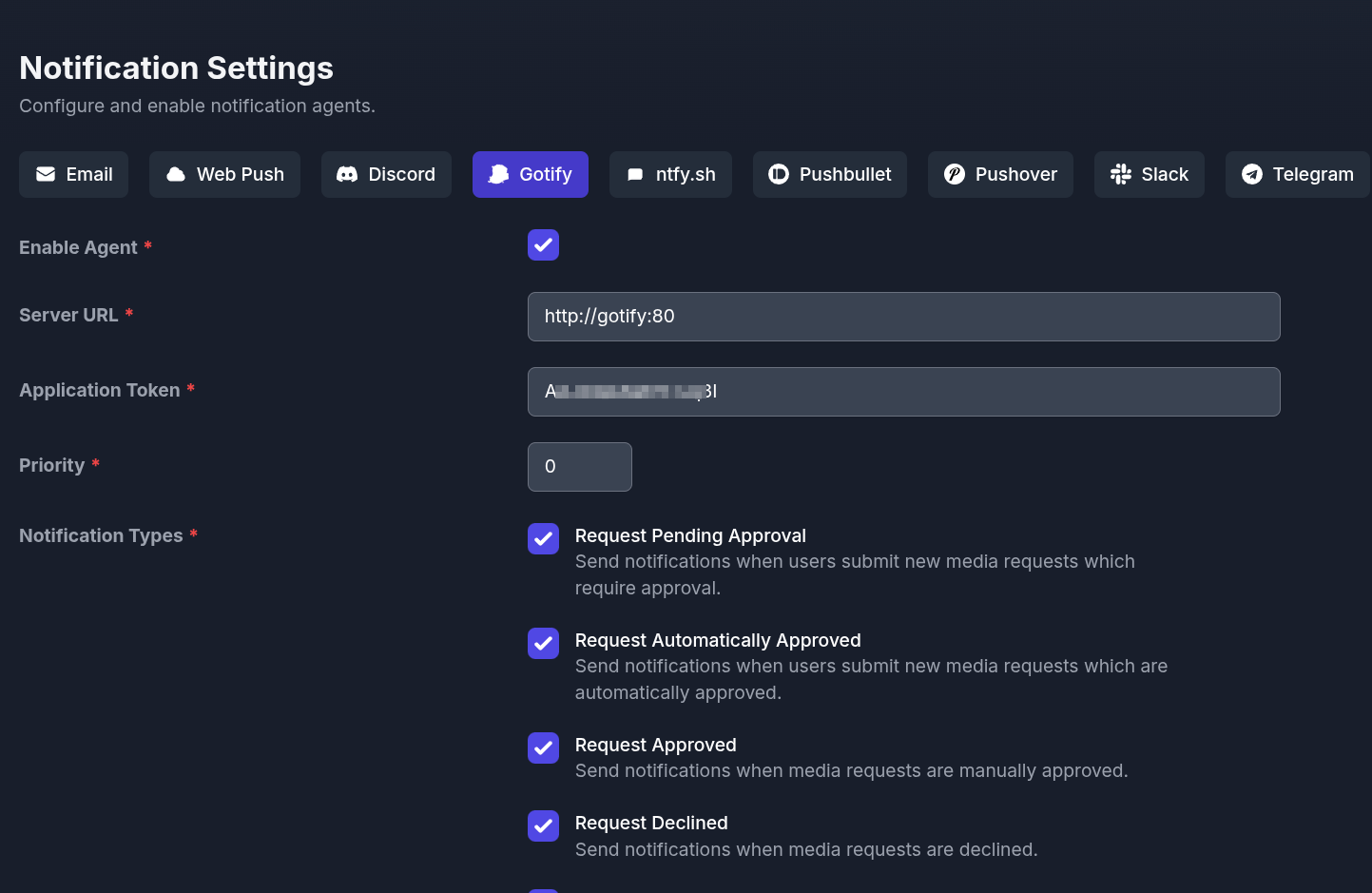
Navigate to Settings > Notifications > Gotify.
-
Server URL: Use the internal Docker routing
http://gotify:80(assuming Gotify container is namedgotify). -
Application Token: Paste the token generated from Gotify UI.
-
Check the boxes for Request Pending, Approved, and Declined to keep users informed automatically.
Step 5: Import Users
Once Jellyfin is fully synced, navigate to Users.
- Click Import Jellyfin Users. This pulls in our friends/family accounts, allowing them to log into Seerr using the exact same password they use for Jellyfin.

Integrated Workflow Pipeline
- Request: User logs into Seerr and requests a movie.
- Dispatch: Seerr automatically forwards the request to Radarr (
http://radarr:7878). - Acquisition: Radarr searches indexers and sends the payload to the download client.
- Ingestion: Radarr imports the completed file into
/media/movies. - Availability: Jellyfin detects the file via inotify filesystem watchers.
- Notification: Seerr detects the Jellyfin library update and pushes a Gotify alert to the user.